

Record and transcribe your Microsoft Teams meetings
Klang joins the call as a visible participant, records it, and delivers the write-up back into the Teams channel or chat that needs it. Nobody types up the meeting and nobody posts it.
Setting it up
An automation sends the report from a finished meeting somewhere else, without anyone clicking anything. You pick three things: where it goes, what it sends, and which meetings it runs on.
- 1
Get Klang into the meeting
Connect your calendar and it joins on its own, or paste the Teams meeting link into Klang for a one-off. It joins as an ordinary participant, so no installation and no special licence is needed to record.
- 2
Let it into the call
Klang appears in the participant list as Klang.ai, so everyone can see it is there. If your meeting has a lobby, someone has to let it in first.
- 3
Choose where the write-up goes
Pick the channel or chat, and what to send: the meeting report, just the ToDos, or your own instruction. It arrives as a card, with long reports collapsed behind Show details. Teams is a workspace integration, so this part may need an admin to install the bot or grant consent.
Choosing which meetings it runs on
Without conditions an automation runs on all your new meetings. Pick whether all of your conditions have to be true, or any one of them.
Folder
A folder and its subfolders.
Tag
A tag someone has applied. A suggested tag does not count.
Meeting name
Your text anywhere in the title.
Participant
One person, by email or name.
Email domain
Anyone from a given organisation.
Only external meetings
At least one participant from outside. Reach for this before writing to a CRM.
Conditions look at the meeting, not at what was said in it. There is no condition for “meetings where we discussed pricing”, so put that kind of judgement in the instructions instead.
Connect your calendar and stop inviting it by hand
Connect your calendar to Klang and it joins and records your meetings on its own, in Google Meet, Microsoft Teams and Zoom. Google Calendar and Outlook are both supported.
- Choose what it joins: everything, only meetings you accepted, or only the ones you organise. Or leave automatic recording off.
- Toggle any single meeting off before it starts.
- Set the language, the folder and speaker identification per meeting.
If you would rather not connect a calendar, add your own Klang invite address to the event as a guest. Every account has its own, and it has to be yours for the recording to land in your workspace.


Scheduled analyses, for the patterns one meeting cannot show
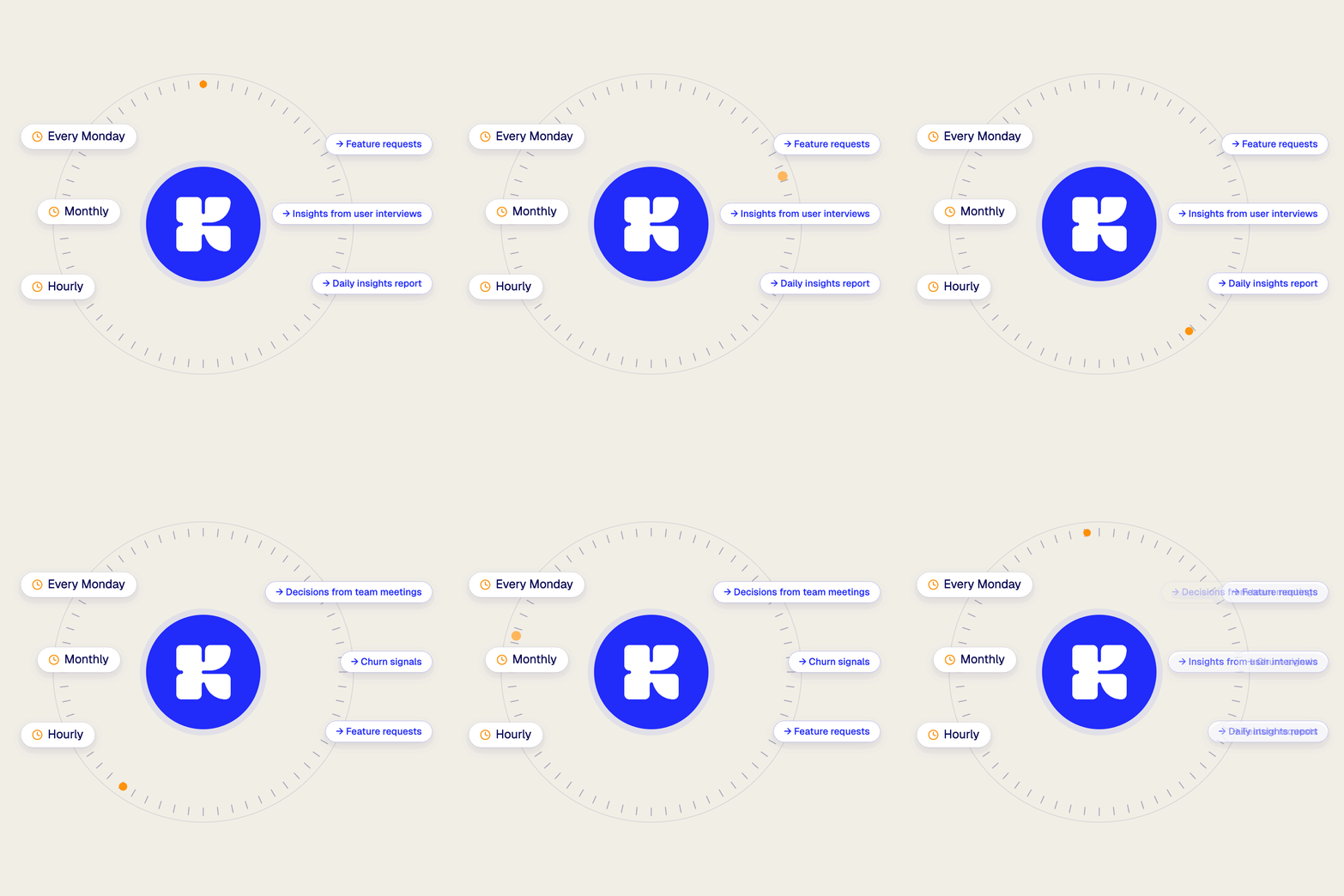
An automation fires per meeting. A scheduled analysis runs on a clock across a whole folder, so you get the pattern rather than the individual write-up. It collects the transcripts added since its last run, and saves the result to the folder you choose.
- A daily summary of yesterday's customer calls
- A weekly roundup of objections in sales calls
- A monthly view of themes in user research
Set it up once, then forget about it
Record your next meeting in Klang and let the write-up find its way to Microsoft Teams on its own.