Intuitive and powerful editing tool for transcriptions
In most cases, transcriptions in Klang are generated almost flawlessly. However, we understand there may be instances when fine-tuning is required or when the names of speakers need to be changed.
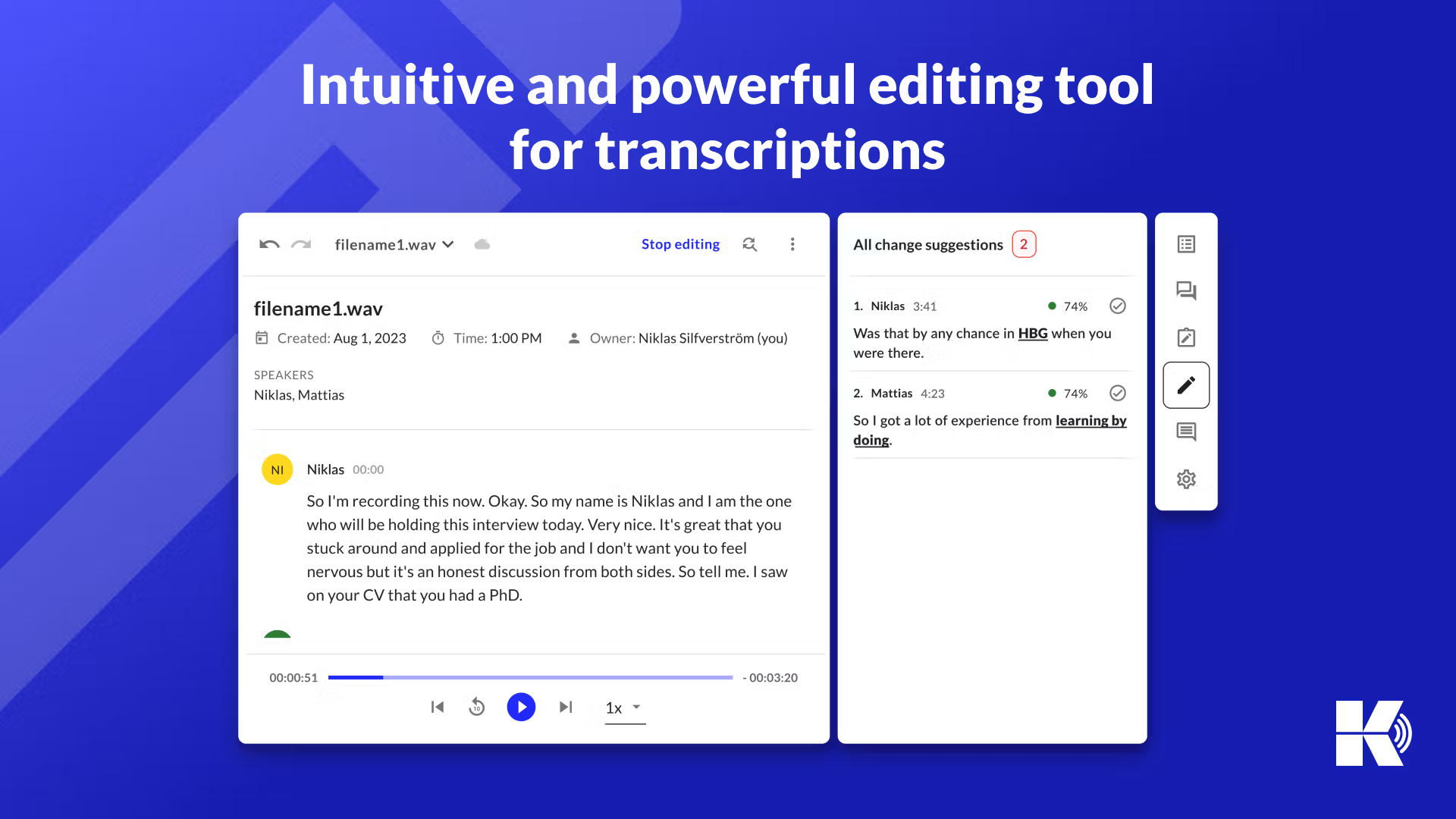
In most cases, transcriptions in Klang are generated almost flawlessly. However, we understand there may be instances when fine-tuning is required or when the names of speakers need to be changed. To facilitate this editing process, we have developed an editing tool in Klang, which aims to be both intuitive and powerful.
Our editing tool makes it easy to make adjustments and changes to the transcription. You correct the text directly while you listen, so you can check every quote against the audio before you use it.
Editing speakers
You can easily edit speakers, add new ones, and change their names by simply clicking on the speaker's name. For increased clarity, the speakers are color-coded, so the same speaker always has the same color even in different transcriptions.
Fewer corrections next time
The same names and technical terms tend to go wrong the same way in every recording. With word lists on Pro, you add your names, products and terms once, and Klang spells them correctly in future transcripts. Otherwise, how much you need to correct depends mostly on the audio: a microphone close to the speaker gives better text than a phone in the middle of a large table.
Smart shortcuts and search
For those who use the editor frequently, we have implemented practical shortcuts to increase efficiency.
For example, you can jump to a specific word and play the sound by simply clicking on it.
Our powerful search function makes it easy to search for and replace text, which can be useful if a name is misspelled.
How to activate the editor
In the transcription view, there is a button in the upper right corner labeled "Edit" that activates editing mode. Once in editing mode, you can change the text by clicking on a spot in the transcription and typing with the keyboard, just like in a regular word processing program.
There is also a player built into the editor, making it easy to listen to the audio and compare it with the transcription.
Special editing mode for subtitles
The editing mode is specially designed for editing subtitles for video. By simply switching to "subtitle mode" in the right menu, each line of text can be edited individually, and the display time adjusted. Once the subtitles are edited and ready, they can be easily exported in the desired file format, such as SRT or VTT.
By taking advantage of Klang's powerful editing tools, you can not only customize transcriptions to your needs but also streamline the entire editing process. We continuously strive to offer user-friendly tools that give you complete control over your text data.
Related guides and insights
Best AI Transcription for Nordic Languages
Finding a transcription service that delivers high quality for Nordic languages has long been a challenge. Many of today's solutions are primarily focused on English, making them less relevant for users in the Nordic region.
Read articleMeeting guidesMeeting Minutes Template: A Practical Copy-and-Paste Format
Use this free meeting minutes template to record decisions, owners, deadlines and follow-ups clearly. Includes a filled example, preparation checklist and formats for common meeting types.
Read articleGuideHow to record and transcribe a phone interview
A current workflow for recording a phone interview with Klang, informing participants and turning the call into a verified transcript and summary.
Read article